Dictionary
Overview
The dictionary lets you look up Chinese vocabulary and choose additional words to study alongside HanziHero's curated words. Its entries, called dictionary items, are based on CC-CEDICT, a Chinese–English dictionary.
Unlike HanziHero's curated words, dictionary items do not have handcrafted mnemonics or hand-picked example sentences. They provide broader vocabulary coverage so you can study words you encounter while reading, listening, or following your own interests. You can also add your own definitions and pinyin, and choose which definition is shown throughout the application.
Use Dictionary Search to find an entry, then open its detail page to explore its definitions and pronunciation. To begin learning it, prioritize it for your dictionary lessons. The My Dictionary section explains how to find and manage dictionary items you have prioritized or learned.
Dictionary search
Use Dictionary Search to look up dictionary items. To open it, click Dictionary Search in the Curriculum dropdown. The search uses the dictionary for your selected course.
Searching
Type into the search field at the top of the page to search for dictionary items. You can search by:
- Characters, such as 咖啡.
- Numbered pinyin, such as ka1fei1. Enter the syllables together without spaces, with the tone number after each syllable.
- English, such as coffee, to find matches in the supplied definitions.
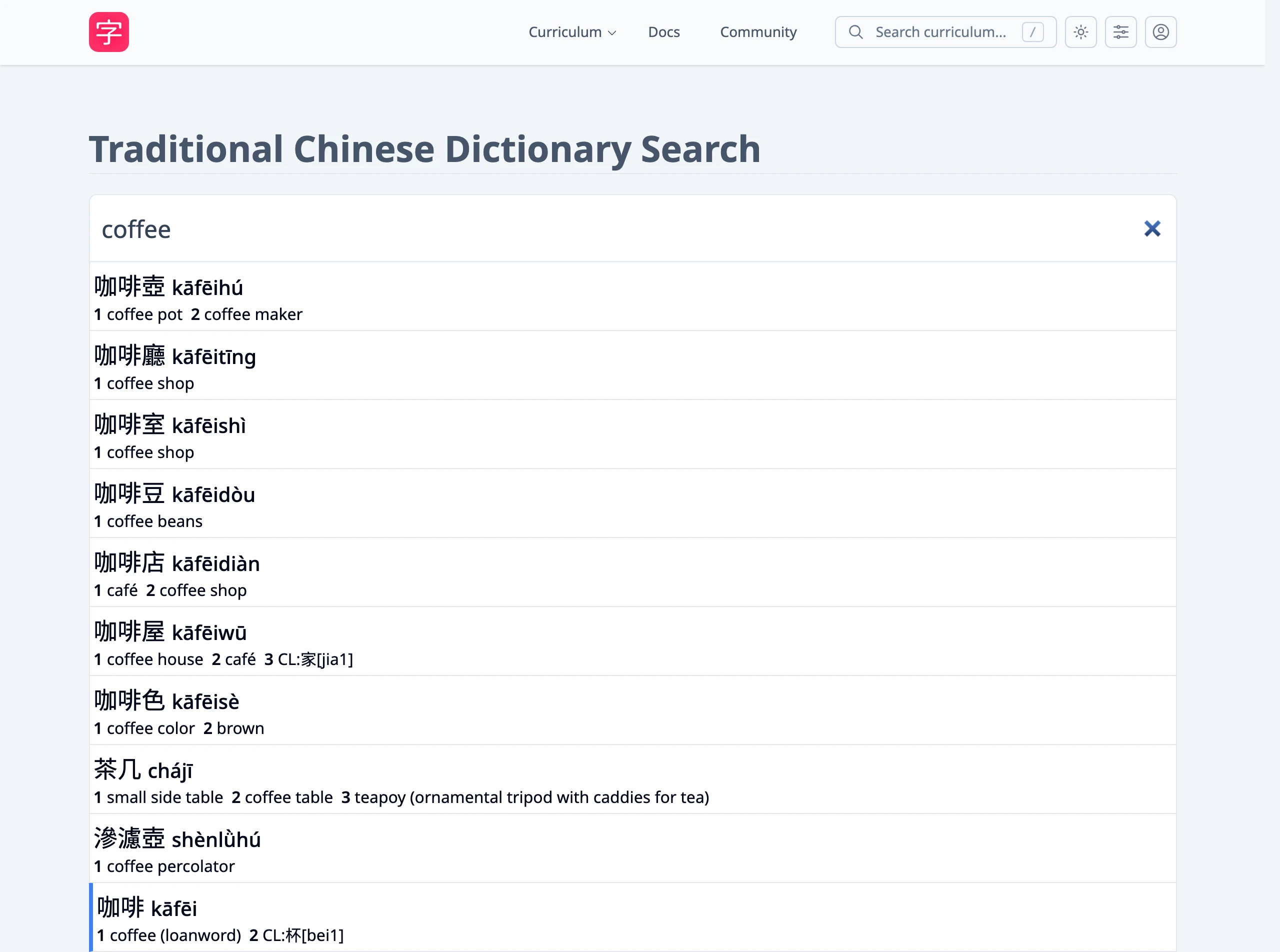
Results update as you type. You can enter part of a word or definition, and a more specific query can help narrow the results. Clear the field to clear the results.
Search results
Each result shows the entry's characters, accented pinyin, and numbered English definitions. Click a result to open its dictionary item detail page, where you can read the complete definitions and customize the entry.
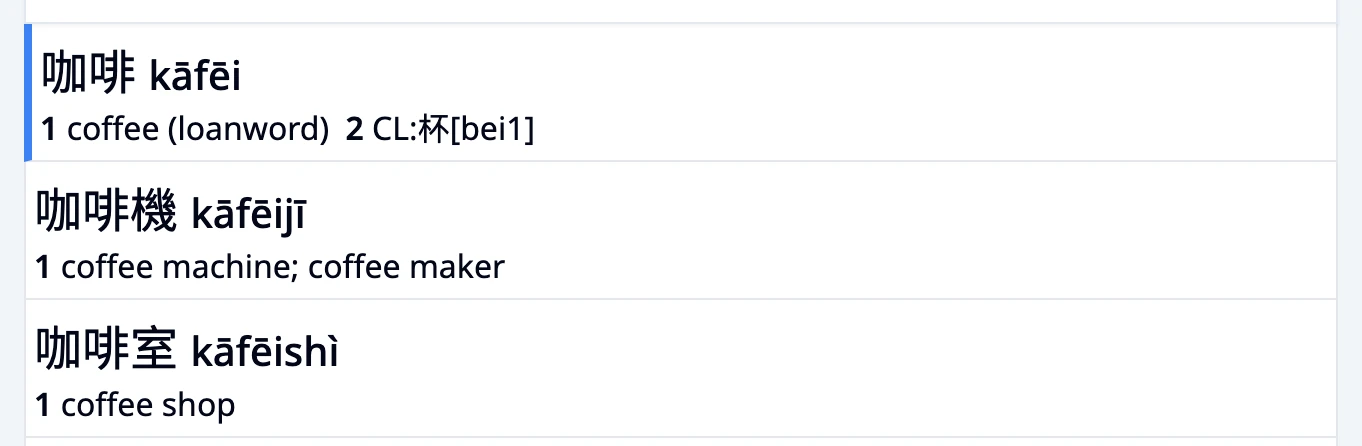
Exact matches appear before partial matches. The search shows up to 100 results; if you cannot find the entry you want, narrow your query or try another wording. Entries with the same characters but different pronunciations can appear as separate results, so check the pinyin as well as the definitions.
A blue border on the left marks an item you have already prioritized or learned. Simply searching for or opening an item does not add it to your dictionary lessons. To begin studying it, prioritize it from its detail page.
Dictionary item detail page
You can open a dictionary item's detail page by clicking its search result or its tile in My Dictionary.
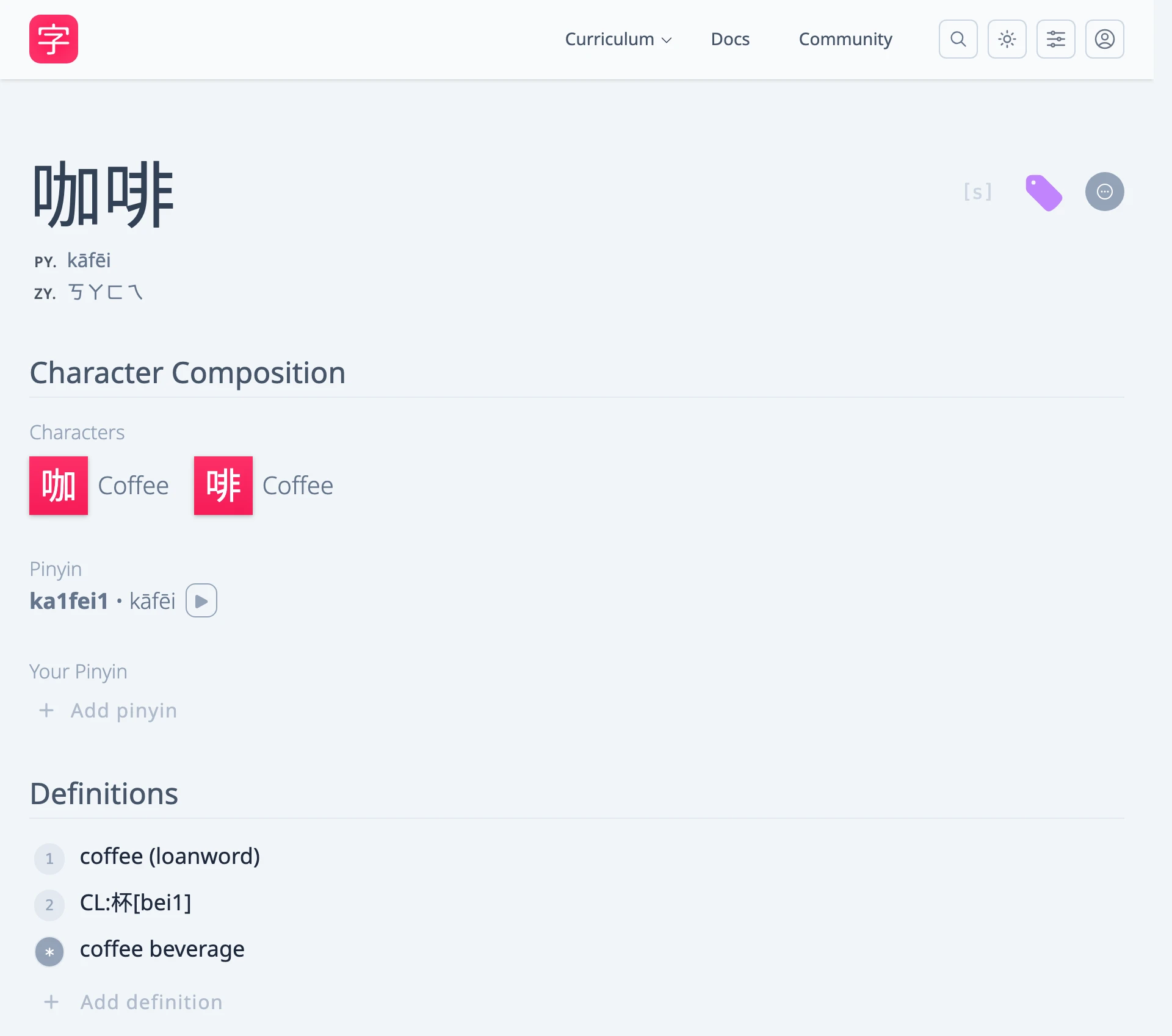
The top of the detail page shows the entry itself, with pinyin and zhuyin beneath it. The three-dot actions dropdown at the top right contains options for managing dictionary items.
If the dictionary item has a corresponding curated word, a purple tag icon appears near the actions dropdown. Click it to open the word's detail page.
Character composition
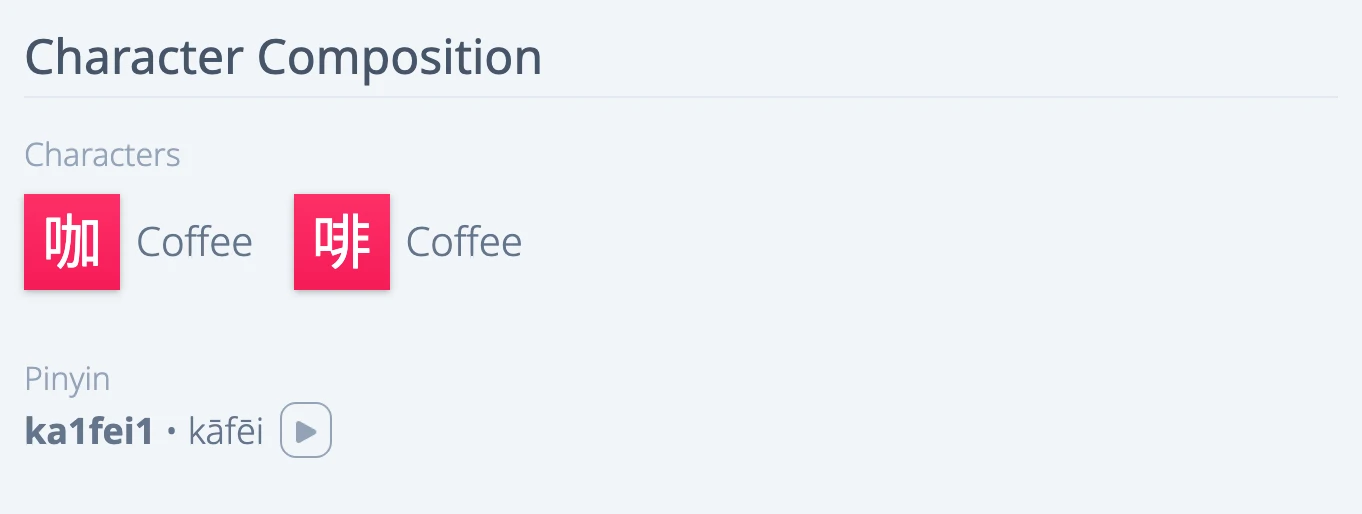
The Character Composition section shows the characters that make up the dictionary item. Click a character to open its character detail page and learn more about it.
Pronunciation
The Character Composition section also shows the dictionary item's pronunciation in pinyin. The pinyin appears in both accented form and numbered form.
To hear the full pronunciation, click the play button next to the pinyin. The Preferred Audio Voice setting determines which voice plays.
Your pinyin
You can add your own pronunciations in addition to the pinyin provided by HanziHero. These are accepted when answering pronunciation questions. They do not replace the entry's original pinyin or change its audio.
Click Add pinyin under Your Pinyin in the Character Composition section. Enter lowercase numbered pinyin without spaces, with a tone number from 1 to 5 after every syllable. For example, enter ka1fei1, not kāfēi or ka1 fei1. Use 5 for a neutral-tone syllable.
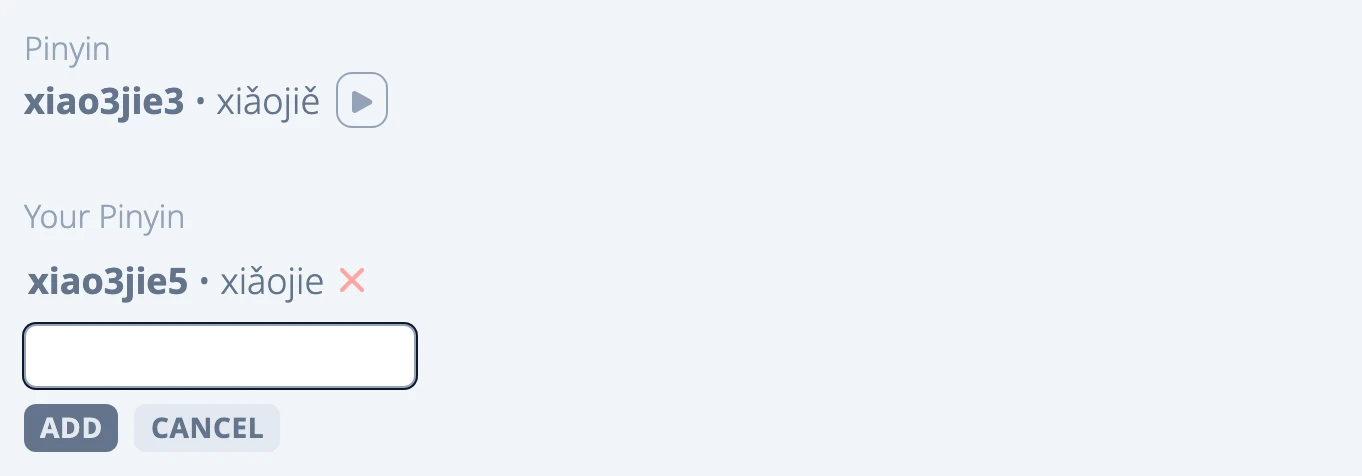
Once the input is valid, click Add or press Enter to save it. The saved pronunciation appears in both numbered and accented forms. Click Cancel to discard the input, or click the × next to a saved pronunciation to remove it.
Definitions
The Definitions section shows the English definitions provided for the dictionary item. An entry may have several definitions, covering different senses or uses. The supplied definitions are numbered, and any definitions you add appear beneath them with an asterisk bullet.
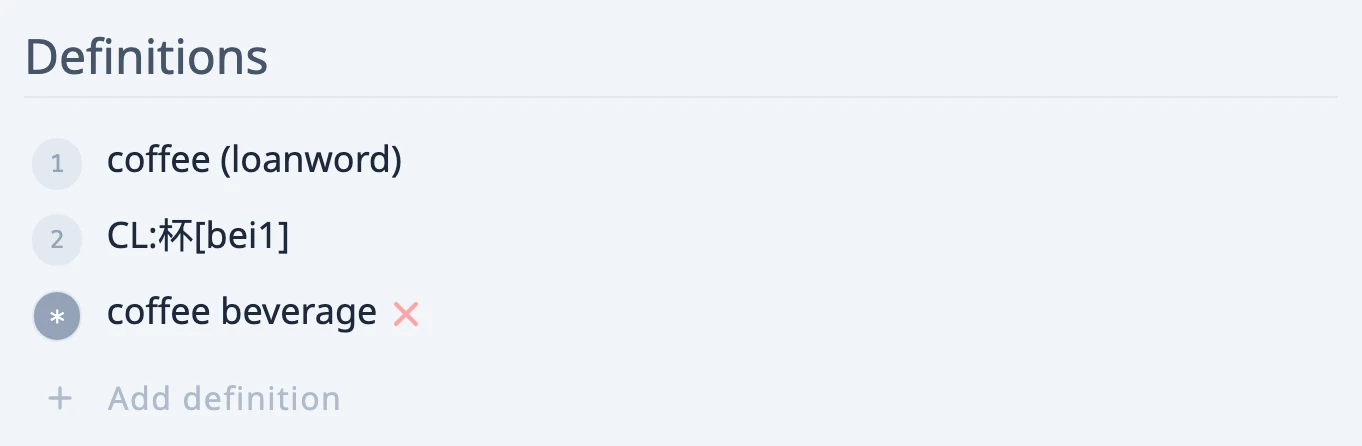
These definitions are accepted when answering meaning questions. For the supplied definitions, HanziHero also accepts individual parts separated by semicolons and ignores text in parentheses. For example, a definition written as to look; to see accepts either to look or to see. You do not need to type every sense of the entry as one answer.
If you prefer another wording, you can add your own definition.
Your definitions
You can add your own definitions in addition to those provided by HanziHero. These work like your synonyms for characters and words: they are additional accepted answers to meaning questions.
Click Add definition beneath the Definitions list. Enter your definition, then click Add or press Enter to save it. Click Cancel to discard your changes.
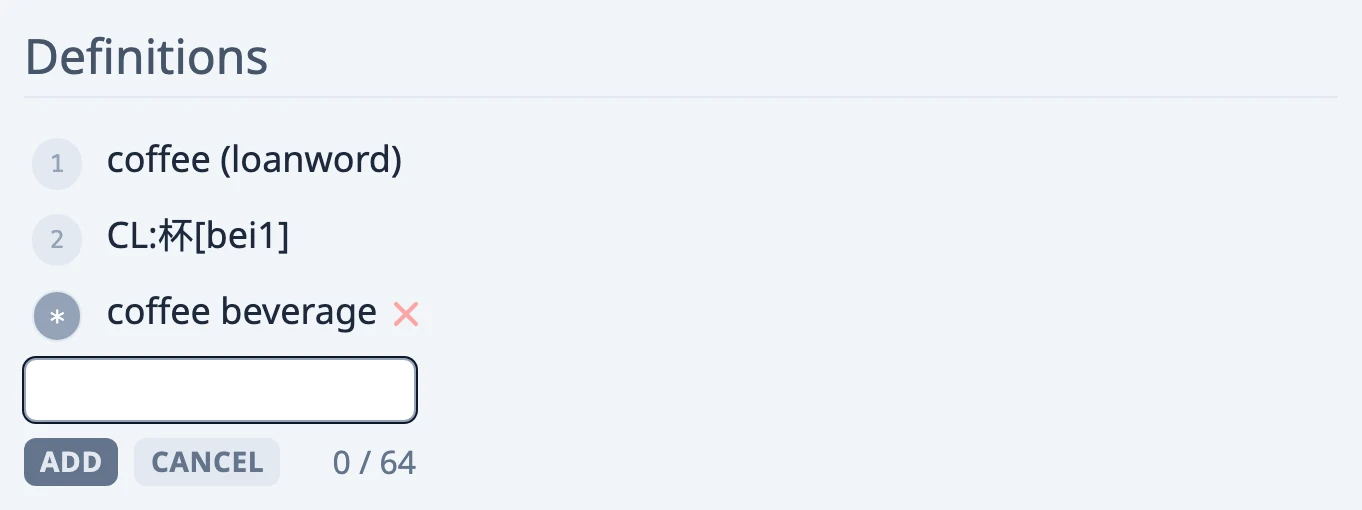
A saved definition appears beneath the supplied definitions with an asterisk bullet. To remove it, click the × next to it. You can also choose it as the primary definition.
Choosing a primary definition
The primary definition is the definition shown on the dictionary item's tiles and pop-up tiles, and as the main meaning answer during reviews. By default, HanziHero uses the first supplied definition. You can choose another supplied definition or one of your definitions instead.
In the Definitions section, click the numbered or asterisk bullet next to the definition you want to use. The selected bullet has a darker background, and your choice is saved automatically.

Your notes
You can add your own notes about the dictionary item in the Your Notes section. Click Click to add note to open the note editor. When you are finished, click Save.
To edit a saved note, click it to reopen the editor.
SRS statistics
Once you have learned a dictionary item, you can see its SRS statistics in the Stats section.
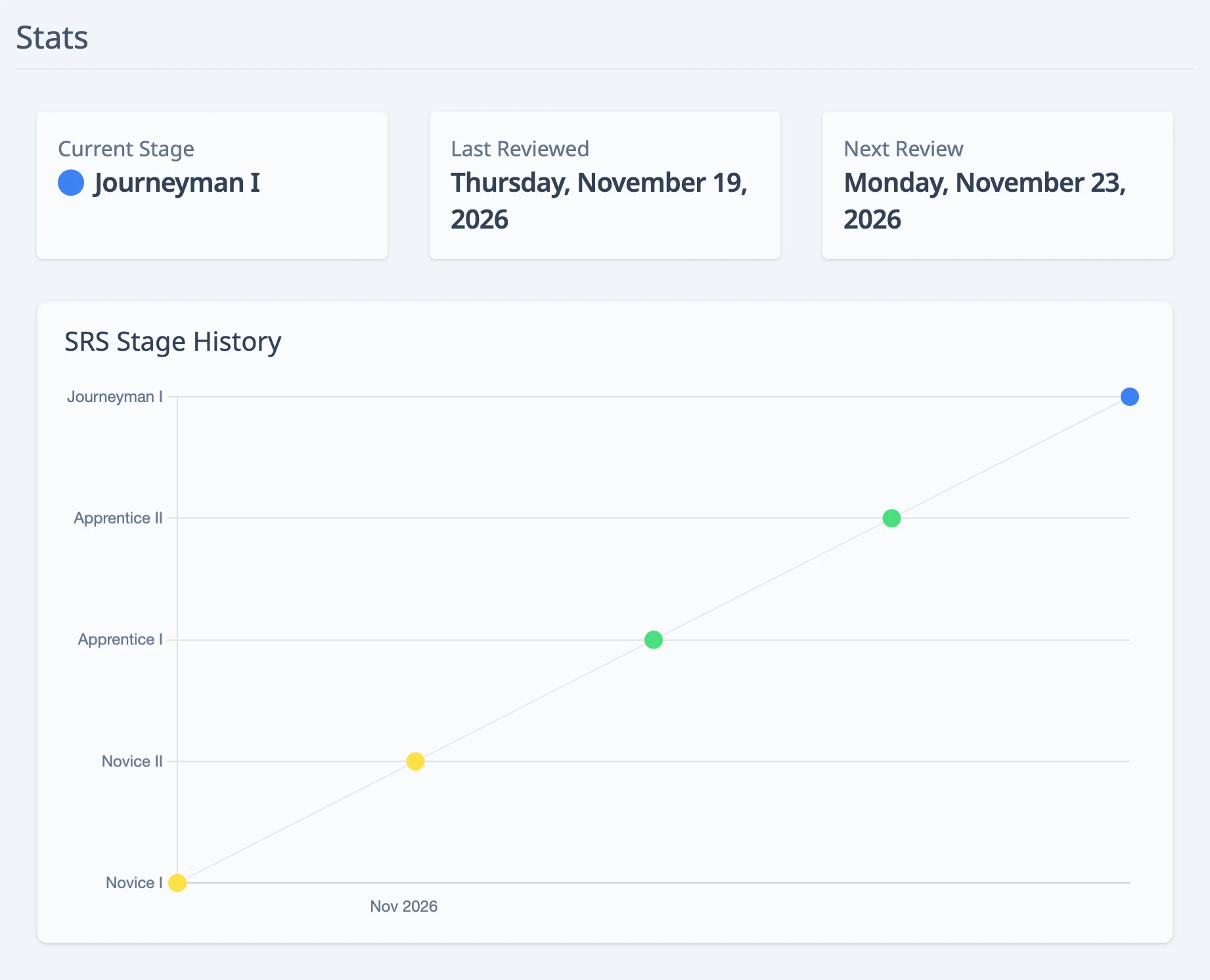
- Current Stage shows the dictionary item's current SRS stage.
- Last Reviewed shows when the dictionary item was last reviewed.
- Next Review shows when the dictionary item is next scheduled for review.
The SRS Stage History shows how the dictionary item's SRS stage has changed over time. Generally, the stage should increase as you successfully review the item.
Managing dictionary items
There are various ways to manage dictionary items in HanziHero.
Prioritizing a dictionary item
To begin learning a dictionary item, you need to prioritize it. Use the actions dropdown on its tile or at the top right of the dictionary item detail page. Unlike HanziHero's curated words, dictionary items do not enter your lessons automatically.
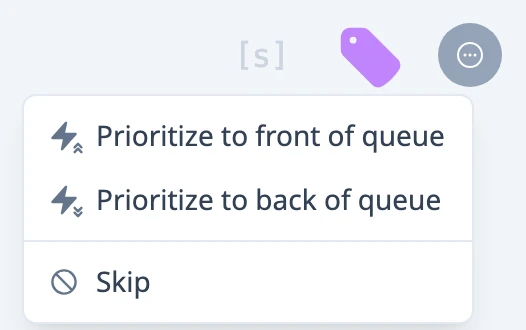
- Prioritize to front of queue adds the dictionary item to the front of the priority queue.
- Prioritize to back of queue adds the dictionary item to the back of the priority queue.
Dictionary lessons have their own daily limit, which you can configure in application settings.
When the Dictionary Item Unlocking setting is enabled, a prioritized item may need to wait until its constituent characters are learned or familiar. The options Unlock when characters are learned and Unlock when characters are familiar determine which requirement applies. Disabling this setting removes the character prerequisite.
Once you learn a dictionary item in a lesson, it is no longer marked as prioritized.
You can unprioritize an unlearned dictionary item by selecting Remove from queue in the actions dropdown. This removes it from the priority queue; it will not appear in your lessons unless you prioritize it again.
Skipping a dictionary item
You may want to skip a dictionary item if it is no longer relevant to your study goals or if you do not need to review it in HanziHero. To do so, select Skip in the actions dropdown.
A dictionary item can be skipped at any point, whether it is learned or unlearned. When a dictionary item is skipped, it will show a fast-forward icon next to it wherever it appears.

Skipped dictionary items do not appear in your lessons or reviews.
To stop skipping a dictionary item, select Unskip in the actions dropdown.
Resetting a dictionary item
You can reset a dictionary item's progress at any time by clicking Reset Item at the bottom of the dictionary item detail page.
Resetting a dictionary item resets its SRS statistics and deletes all associated review history. It does not remove your notes, your definitions and pinyin, or your primary-definition choice.
After a reset, the dictionary item is unlearned and is no longer prioritized. To study it again, prioritize it.
Viewing alternate scripts
If a dictionary item has a corresponding entry in the other script, a link appears near the actions dropdown at the top right of its detail page.
- [s] opens the corresponding entry in the simplified Chinese course.
- [t] opens the corresponding entry in the traditional Chinese course.
Some entries have more than one counterpart, in which case multiple links appear. Clicking a link opens the other entry's detail page; it does not change your course.
My Dictionary
The My Dictionary page shows dictionary items you have prioritized or learned. To open it, click My Dictionary in the Curriculum dropdown.
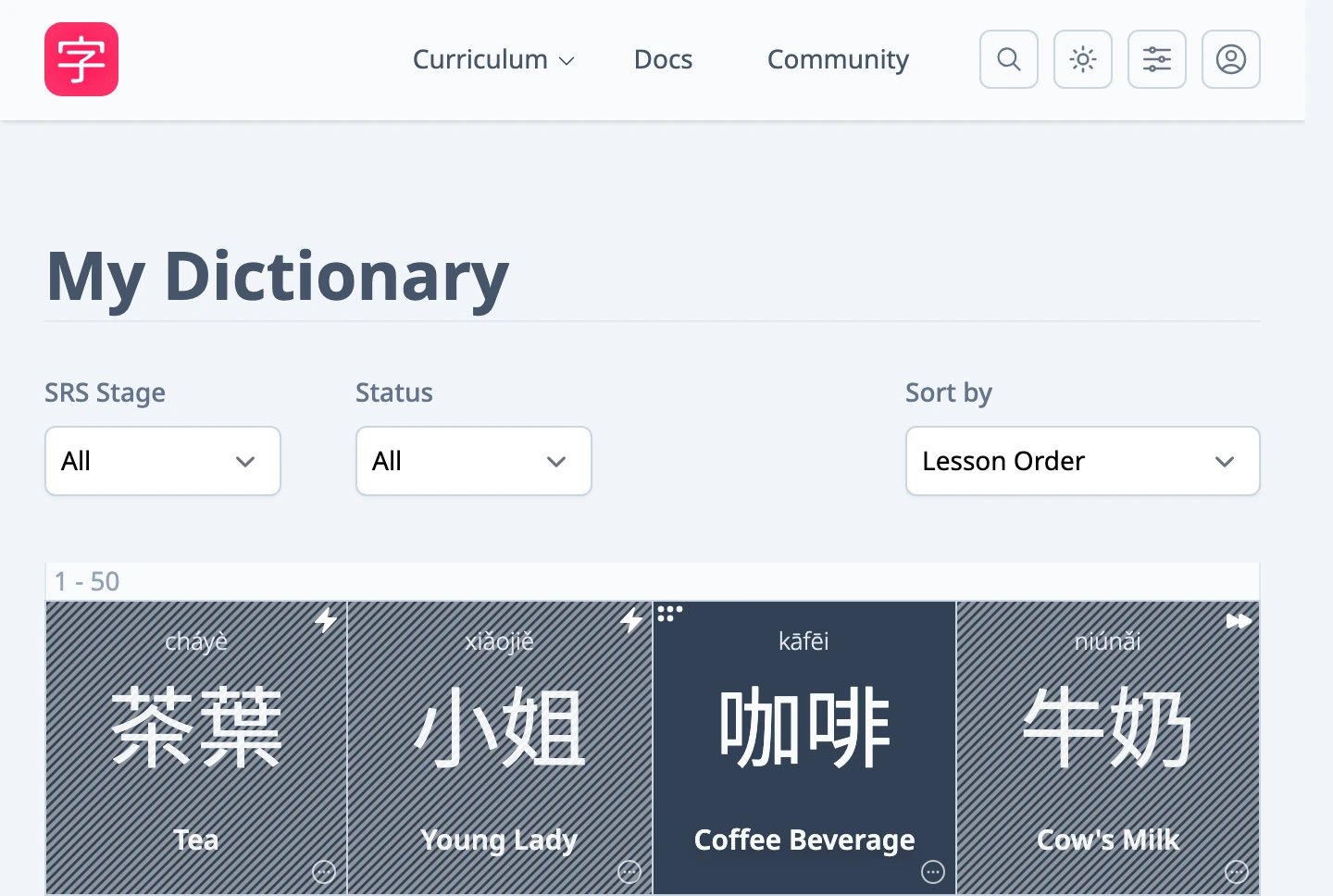
Filters and sorting options appear at the top of the page. The list shows dictionary items that match all selected filters.
SRS stage filter
The SRS Stage filter allows you to find dictionary items that are at a given SRS stage.
- All shows all dictionary items in My Dictionary. It is equivalent to having no SRS stage filter at all.
- Unlearned shows dictionary items that have not yet been learned.
- Learned shows dictionary items that have been learned, regardless of their SRS stage.
- Novice, Apprentice, Journeyman, Expert, and Master each show dictionary items at the corresponding SRS stage.
Status filter
The Status filter allows you to find dictionary items that have a given status within HanziHero.
- All shows all dictionary items in My Dictionary. It is equivalent to having no status filter at all.
- Prioritized shows dictionary items that are prioritized.
- Skipped shows dictionary items that have been skipped.
- Normal shows dictionary items with no special status.
- Leeched shows dictionary items that have been marked as a leech.
- Duplicate shows dictionary items that have a corresponding entry among HanziHero's curated words.
Sorting
Use the Sort by dropdown to sort My Dictionary.
- Lesson Order sorts dictionary items according to their lesson order, taking their priority into account.
- Least Recently Learned sorts dictionary items by when you learned them, with the earliest learned items first. Unlearned items appear last.
- Most Recently Learned sorts dictionary items by when you learned them, with the most recently learned items first. Unlearned items appear last.
Dictionary item tiles
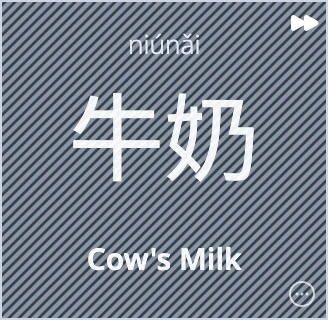
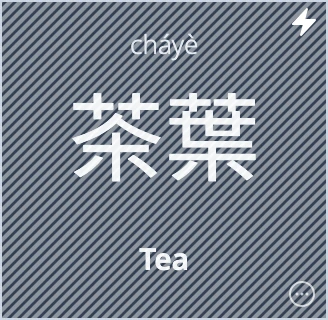
Each dictionary item in the list is presented as a tile showing its pinyin, characters, and primary definition.
Unlearned dictionary items have a diagonal pattern overlay.
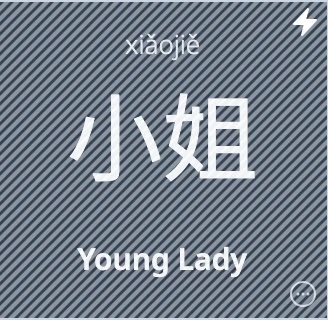
Learned dictionary items have a solid dark gray background.
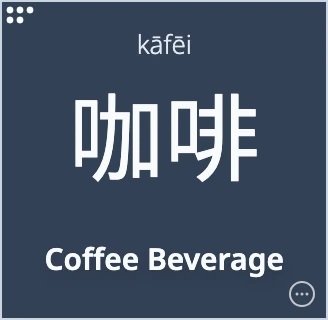
Skipped dictionary items have a fast-forward icon at the top right.
Prioritized dictionary items have a lightning-bolt icon at the top right.
The button at the bottom right of each tile opens the actions dropdown. Like the dropdown on the dictionary item detail page, it provides options for managing dictionary items.